How to Update Your JobStack App
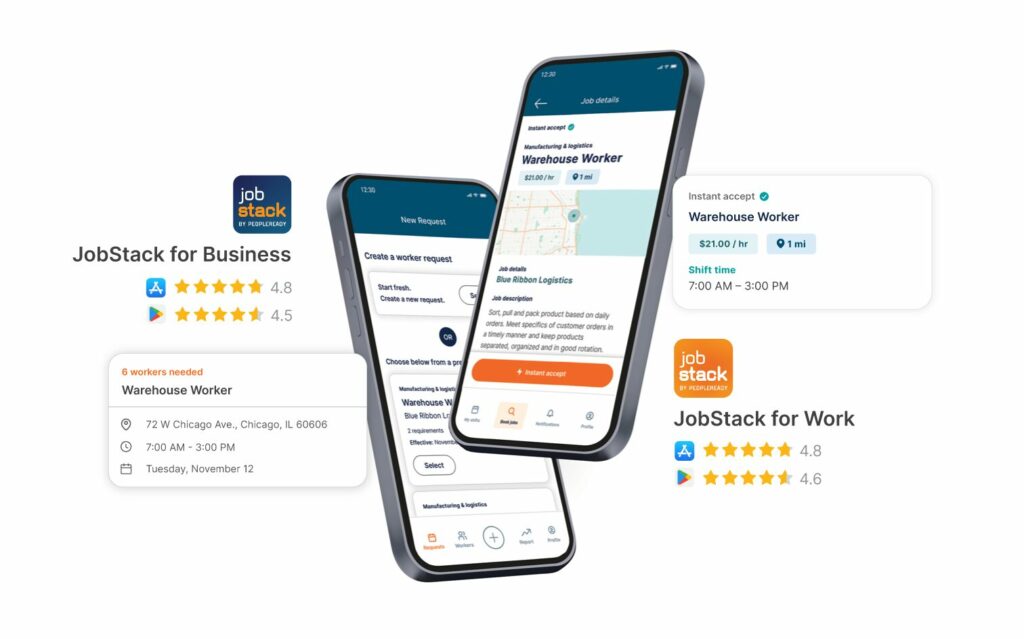
This short guide walks you through updating either JobStack for Work (for job seekers) or JobStack for Business (for customers) on iOS (iPhone / iPad) and Android devices. Keeping the app up to date ensures you get the latest features, bug fixes and security improvements.
Updating on iOS (App Store)
Option 1 – Update from your Account screen:
- Unlock your device and open the App Store.
- Tap your profile picture (upper‑right corner).
- Scroll to “Available Updates”.
- Find JobStack for Work or JobStack for Business then tap Update.
Option 2 – Search the listing page manually:
- Open the App Store and tap the search tab.
- Type “JobStack for Work” or “JobStack for Business”.
- If an Update button appears, tap it.
Direct links to the listings (tap if you are reading this on your device):
• JobStack for Work – iOS: https://apps.apple.com/us/app/jobstack-for-work-job-search/id1533453332
• JobStack for Business – iOS: https://apps.apple.com/us/app/jobstack-for-business/id1551379220
Tip: To turn on automatic updates, go to Settings ► App Store ► App Updates and enable “App Updates”.
Updating on Android (Google Play Store)
Option 1 – Update from Manage apps & device:
- Open the Google Play Store app.
- Tap your profile picture and choose “Manage apps & device”.
- Under “Updates available” tap “See details”.
- Look for JobStack for Work or JobStack for Business then tap Update.
Option 2 – Search the listing page manually:
- In Google Play, tap the search bar and type the app name.
- Open the app page; tap Update if available.
Direct links:
• JobStack for Work – Android: https://play.google.com/store/apps/details?id=org.peopleready.jobstack
• JobStack for Business – Android: https://play.google.com/store/apps/details?id=org.peopleready.jobstackcustomer
Tip: To enable auto‑updates, open Google Play Store ► profile icon ► Settings ► Network preferences ► Auto‑update apps and select your preferred option.
Troubleshooting
- No “Update” button? The app is already on the latest version.
- Update stuck or fails? Check your Wi‑Fi or mobile data connection and ensure you have at least 200 MB of free storage.
- Still having trouble? Delete the app then reinstall it from the links above – your PeopleReady login will bring back your data.